How to Use a Computer (Beginner-Friendly Step-by-Step Guide)
Published: 10 Feb 2026

If you’re new to computers, don’t worry—you’re not alone. A computer can feel confusing at first, especially when you don’t know what to click, where files go, or how to use the keyboard and mouse properly.
This guide will teach you how to use a computer step by step, in a simple and friendly way. By the end, you’ll feel confident doing everyday tasks like typing, browsing the internet, saving files, and using basic computer shortcuts.
What Does “Using a Computer” Mean?
Using a computer means learning the basic skills needed to operate it, such as:
- Turning it on and logging in
- Using the mouse and keyboard
- Opening and closing programs
- Creating and saving files
- Browsing the internet safely
- Managing folders and downloads
- Printing documents
- Shutting down correctly
Once you learn these basics, you can use a computer for work, school, online learning, entertainment, and more.
The Main Parts of a Computer (Quick Overview)
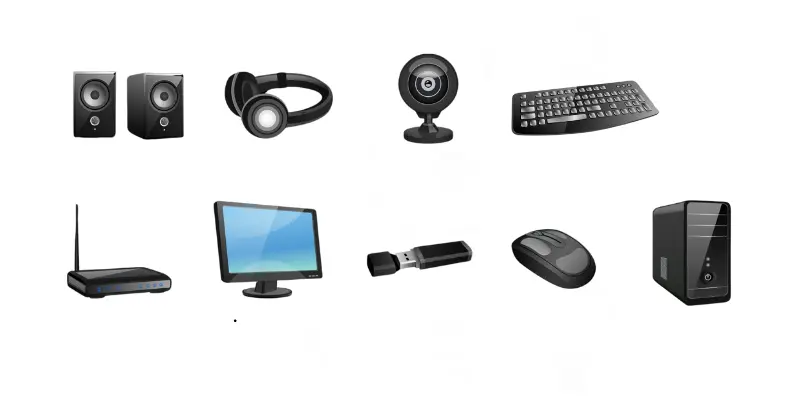
Before you start, it helps to understand the basic parts.
If You Have a Desktop Computer
A desktop usually includes:
- Monitor (screen)
- CPU / System Unit (the main box)
- Keyboard
- Mouse
- Speakers (optional)
- Printer (optional)
If You Have a Laptop
A laptop already has everything built-in:
- Screen
- Keyboard
- Touchpad (acts like a mouse)
- Camera and microphone
Step 1: How to Turn On a Computer
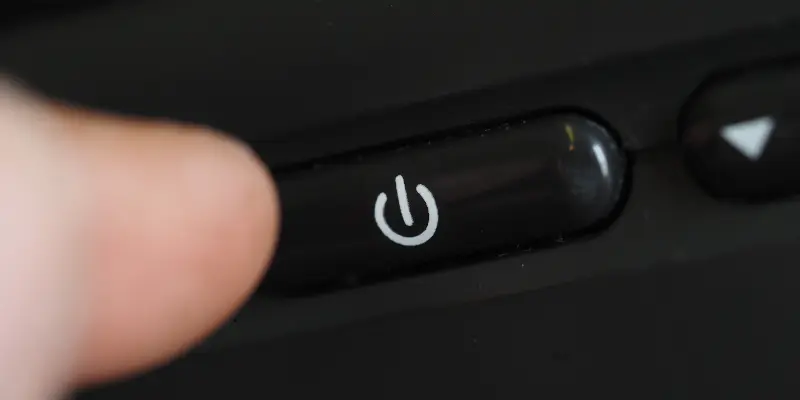
Turning on a computer is easy, but beginners often don’t know what to do next.
To turn on a desktop:
- Press the power button on the CPU (main box)
- Turn on the monitor (if it’s separate)
- Wait for the computer to load
To turn on a laptop:
- Press the power button
- Wait for the screen to light up
Step 2: How to Log In (If Asked)
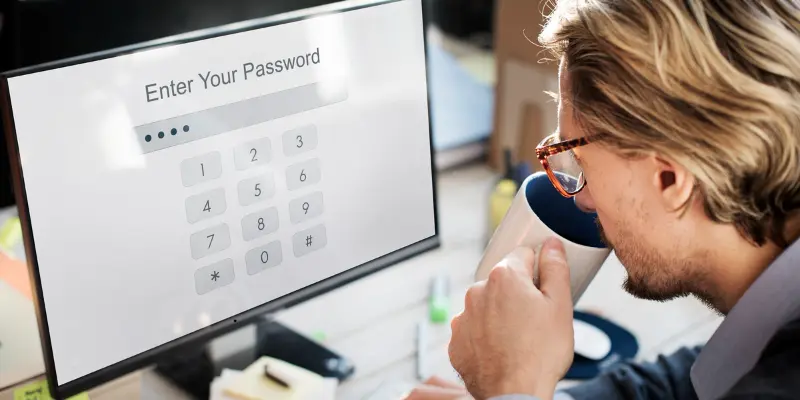
Some computers require a password or PIN.
- Click your user profile
- Type the password or PIN
- Press Enter
Tip for beginners
If you don’t know the password, ask the person who set up the computer.
Step 3: Understanding the Desktop Screen

The desktop is the main screen you see after logging in.
You will usually see:
- Icons (small pictures for apps and files)
- Taskbar (bottom bar in Windows)
- Start menu (Windows logo)
- Recycle Bin (where deleted files go)
Windows vs Mac (simple difference)
- Windows uses the Start menu
- Mac uses the Dock and Apple menu
Step 4: How to Use a Mouse (Very Important)
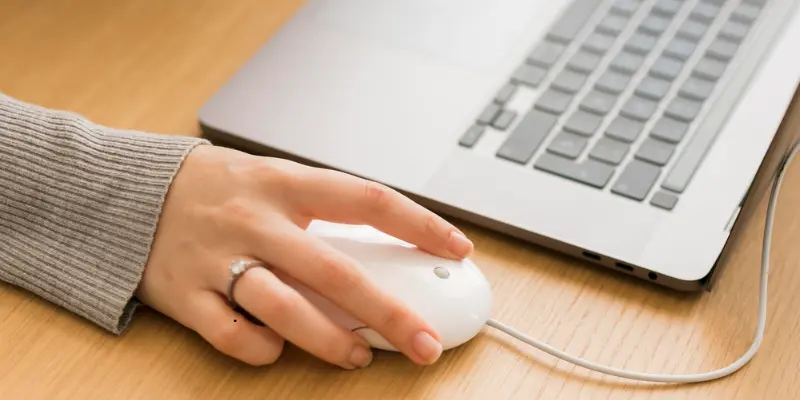
A mouse helps you control the arrow on the screen (called a cursor).
Basic mouse actions
- Left-click: Select something
- Double-click: Open a file or folder
- Right-click: Shows extra options (menu)
- Scroll wheel: Move up and down on pages
Beginner tip
If double-clicking is hard, try clicking twice quickly without moving the mouse.
Step 5: How to Use a Laptop Touchpad

If you don’t have a mouse, your laptop touchpad works like this:
- Move one finger to move the cursor
- Tap once to click
- Tap twice to double-click
- Use two fingers to scroll
Step 6: How to Use a Keyboard (Typing Basics)
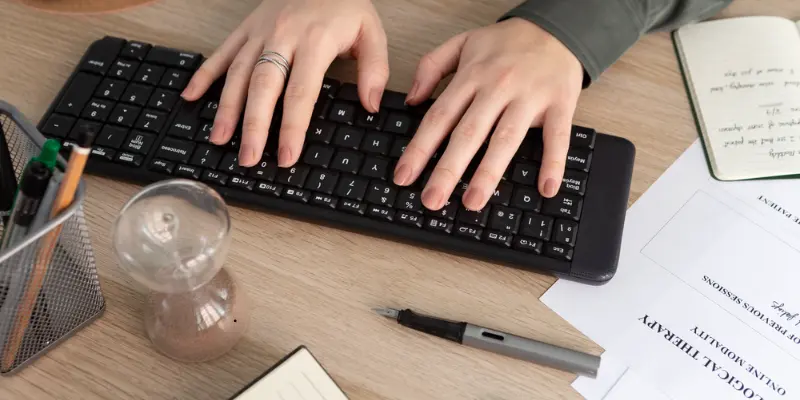
The keyboard is used for typing and commands.
Most important keys to know
- Enter: Goes to the next line or confirms an action
- Backspace: Deletes letters behind the cursor
- Spacebar: Adds space between words
- Shift: Makes letters capital
- Caps Lock: Turns on capital letters
- Ctrl (Control): Used for shortcuts
- Alt: Used for special functions
- Arrow keys: Move the cursor
Step 7: How to Open and Close Programs

Programs are also called apps or software.
On Windows:
- Click the Start button
- Type the program name (example: Word, Chrome)
- Click it to open
On Mac:
- Click Launchpad or use the Dock
- Click the app icon
How to close a program
- Click the X at the top-right (Windows)
- Click the red button at the top-left (Mac)
Step 8: How to Use the Internet on a Computer

To use the internet, you need a web browser.
Popular browsers include:
- Google Chrome
- Microsoft Edge
- Mozilla Firefox
- Safari (Mac)
How to open a website
- Open the browser
- Click the address bar at the top
- Type a website (example: google.com)
- Press Enter
Step 9: How to Search on Google
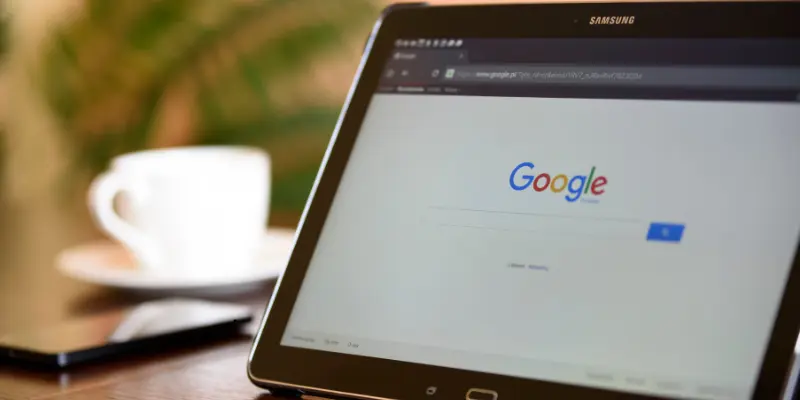
Searching online is one of the most common computer skills.
Steps:
- Go to Google
- Type what you want (example: how to cook rice)
- Press Enter
- Click results that look trustworthy
Beginner safety tip
Avoid clicking “download” buttons from random websites.
Step 10: How to Create, Save, and Find Files (Most Beginners Struggle Here)

This is one area many competitor articles don’t explain properly, but it’s very important.
What is a file?
A file is something stored on your computer, like:
- A Word document
- A photo
- A video
- A PDF
- A music file
What is a folder?
A folder holds files to keep them organized.
Step 11: How to Save Your Work Correctly

When you write something in Word or Notepad, you must save it.
The easiest way to save
- Press Ctrl + S (Windows)
- Press Command + S (Mac)
How to save a file the first time
- Click File
- Click Save As
- Choose a location (Documents is best)
- Name the file
- Click Save
Step 12: Where Do Downloads Go?
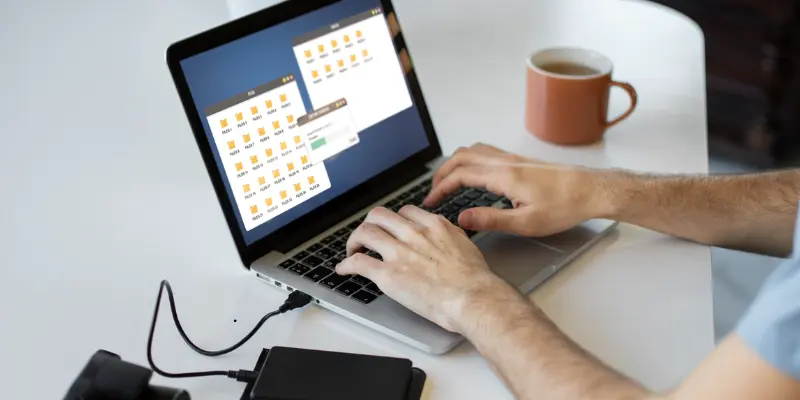
This is a common beginner confusion.
When you download something from the internet, it usually goes to the:
✅ Downloads folder
How to open Downloads folder (Windows)
- Open File Explorer
- Click Downloads on the left
Step 13: How to Create a Folder (Simple and Useful)
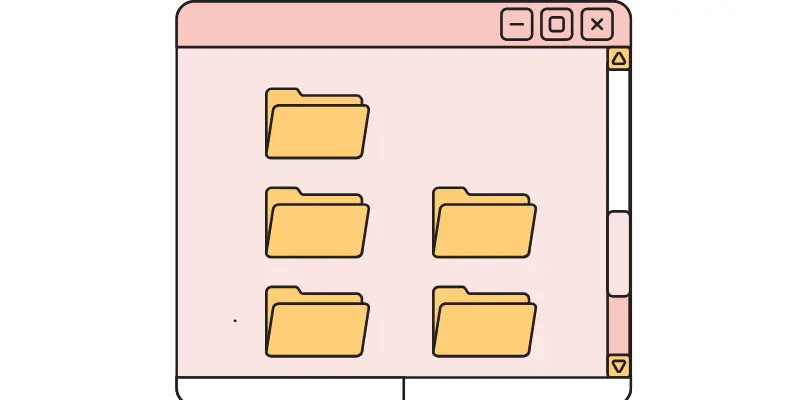
Creating folders keeps your computer clean and organized.
On Windows:
- Right-click on an empty space
- Click New
- Click Folder
- Type a name and press Enter
On Mac:
- Right-click
- Click New Folder
- Name it
Step 14: How to Copy, Paste, Move, and Delete Files
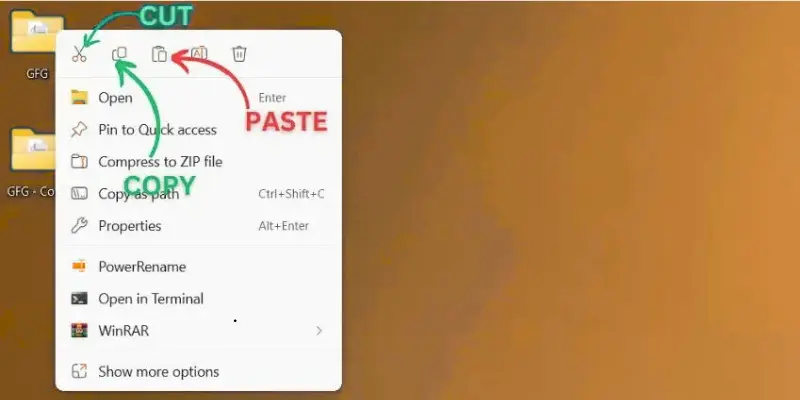
These are everyday computer skills.
Copy and paste
- Ctrl + C = Copy
- Ctrl + V = Paste
Cut and paste (move)
- Ctrl + X = Cut
- Ctrl + V = Paste
Delete a file
- Select the file
- Press Delete
- It goes to Recycle Bin
Recover a deleted file
Open Recycle Bin and click Restore
Step 15: Beginner Keyboard Shortcuts Cheat Sheet (Very Important)
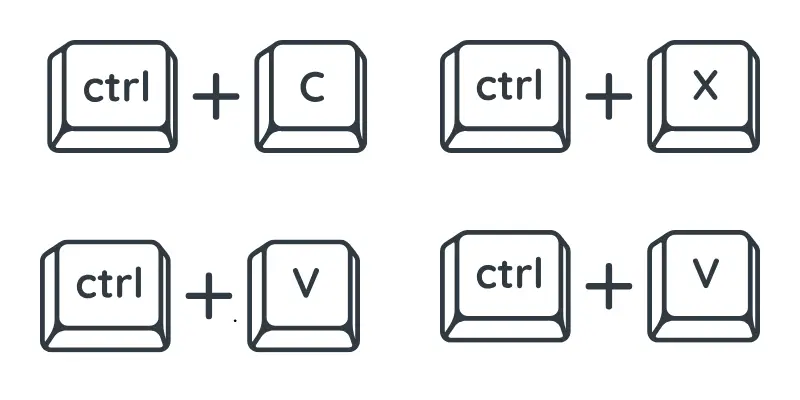
This is one of the biggest things competitors don’t include clearly.
Most useful computer shortcuts
- Ctrl + C → Copy
- Ctrl + V → Paste
- Ctrl + X → Cut
- Ctrl + Z → Undo
- Ctrl + S → Save
- Ctrl + A → Select all
- Alt + Tab → Switch between open programs
- Ctrl + P → Print
- Windows + E → Open File Explorer
These shortcuts make you faster and more confident.
Step 16: How to Print a Document
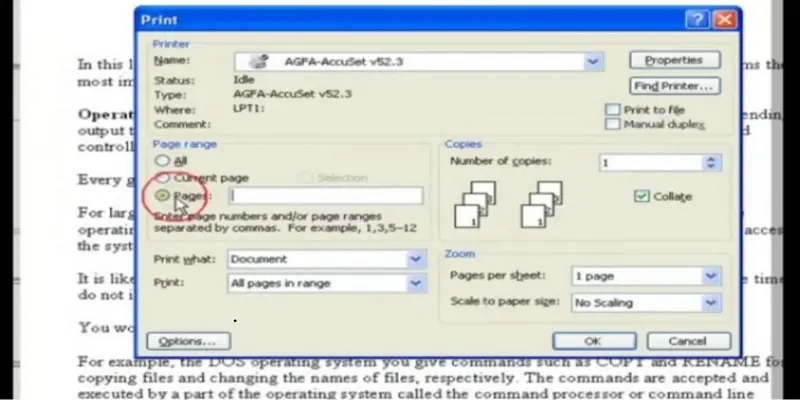
Printing is easy once you know the steps.
- Open your document
- Press Ctrl + P
- Select the printer
- Click Print
Tip
Make sure your printer is:
- connected (USB or Wi-Fi)
- has paper
- has ink
Step 17: How to Shut Down a Computer Properly
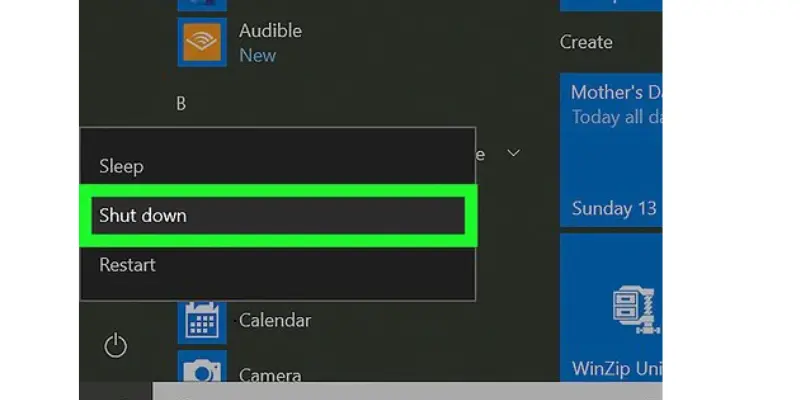
Never turn off the computer by unplugging it.
On Windows:
- Click Start
- Click Power
- Click Shut down
On Mac:
- Click the Apple icon
- Click Shut Down
Step 18: Computer Safety Tips for Beginners

Using a computer safely is just as important as learning to click.
Simple safety rules
- Don’t download from unknown websites
- Avoid clicking suspicious popups
- Use strong passwords
- Don’t share your passwords
- Update your computer regularly
- Use antivirus protection
How to recognize a scam
If a website says:
- “Your computer has a virus!”
- “Click here to fix now!”
- “You won an iPhone!”
It’s probably fake.
Step 19: Basic Troubleshooting (Quick Fixes)
If your computer is slow
- Restart it
- Close unused tabs
- Uninstall apps you don’t use
- Delete unnecessary files
If the internet is not working
- Restart Wi-Fi router
- Turn Wi-Fi off and on
- Restart the computer
If the computer freezes
- Press Ctrl + Alt + Delete (Windows)
- Open Task Manager and close the stuck app
A Simple 7-Day Practice Plan
If you want to learn faster, follow this mini plan.
Day 1
Turn on → login → shut down
Day 2
Mouse clicking + keyboard typing
Day 3
Open programs + close programs
Day 4
Create a folder + save a file inside
Day 5
Browse the internet + search on Google
Day 6
Download a file and find it in Downloads
Day 7
Learn shortcuts + print a document
FAQs About How to Use a Computer
1) How do I start using a computer for the first time?
Start by learning how to turn it on, use the mouse and keyboard, and open basic programs like a browser or Word.
2) What is the easiest way to learn computer basics?
Practice daily for 15–20 minutes. Start small and repeat the same tasks until they feel normal.
3) How do I learn typing faster?
Use free typing practice websites and focus on accuracy first, not speed.
4) Where are my saved files stored?
Most files are stored in:
- Documents
- Desktop
- Downloads
5) What should I do if I accidentally delete a file?
Check the Recycle Bin. You can restore the file if it’s still there.
6) How can I keep my computer safe?
Avoid unknown downloads, use antivirus, and never share your passwords.
Conclusion: You Can Learn How to Use a Computer Easily
Learning how to use a computer is not hard—you just need the right steps and a little practice. Start with turning it on, using the mouse and keyboard, and learning how to save files. After that, you’ll quickly become confident in browsing the internet, using apps, and managing your work.
If you practice just a little every day, you’ll be surprised how fast you improve.




- Be Respectful
- Stay Relevant
- Stay Positive
- True Feedback
- Encourage Discussion
- Avoid Spamming
- No Fake News
- Don't Copy-Paste
- No Personal Attacks
- Be Respectful
- Stay Relevant
- Stay Positive
- True Feedback
- Encourage Discussion
- Avoid Spamming
- No Fake News
- Don't Copy-Paste
- No Personal Attacks
